Top 6 Ways to Fix WhatsApp Won’t Open on iPhone/iPad
Top 6 Ways to Fix WhatsApp Won’t Open on iPhone/iPad
- Restart iPhone/iPad
- Force Quit WhatsApp
- Change Network on iPhone/iPad
- Reset Network Settings
- Uninstall & Reinstall The Latest WhatsApp
- Erase All Content and Settings
- 1Restart iPhone/iPad
WhatsApp may fail to open on your iOS device simply because of an iOS bug. From our experience, restarting the device can fix this bug. Restarting an iOS device is easy. Follow the steps below:
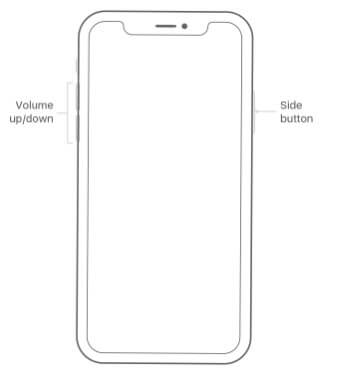
iPhone X
Step 1: Press both your iPhone Side button and either volume up or down buttons. Hold the two buttons until a slider appears. Drag this slider to turn your iPhone X off.
Step 2: Press the side button after the device is off and keep holding it until an Apple logo appears.
iPad, iPhone 8 and Below, or iPod Touch
Step 1: Press the side (or top) button until you see a slider. Drag that slider to turn your device off.
Step 2: Press and then keep holding the side (or top) button after your device is completely off until the Apple logo shows.
Sponsor Ads:
Gihosoft iPhone Data Recovery is a professional iPhone Data Recovery software to get back all your lost text message, photo, video, call history, note, contact and more from iPhone/iPad/iPod Touch. It offers a full solution to recover your lost data in different tough situations. Besides recovering data directly from iPhone, iPad and iPod touch, it also allows you to recover data from iCloud and iTunes backup files.

2Force Quit WhatsApp
Sometimes, your iOS WhatsApp may become unresponsive. To fix this issue, you need to force it to close. Here is how you can do it:
iPhone 8 and Earlier
Step 1: Double tap your Home button for you to see the apps you have used recently.
Step 2: Swipe either left or right until you locate WhatsApp. Swipe on WhatsApp’s preview to close it.
iPhone X
Step 1: From the device Home screen, swipe up and then pause.
Step 2: Swipe left or right to locate WhatsApp.
Step 3: Touch WhatsApp and then hold it. Tap the red minus sign (-) to close the app.

3Change Network on iPhone/iPad
There are occasions when iPhone WhatsApp won’t open because of a poor network connection. In such cases, all you need to do is to switch between Wi-Fi and mobile internet. Here is how you do it:
Step 1: From your screen bottom, swipe up to get the control center.
Step 2: Tap the Wi-Fi icon to disable it and then enable the Cellular icon.

4Reset Network Settings
If you switch between Wi-Fi and mobile internet and still your WhatsApp won’t open, you may need to reset the network settings. Follow the steps below to reset the network settings:
Step 1: Go to Settings and then tap General.
Step 2: At the menu bottom, tap Reset and then Reset Network Settings.

5Uninstall & Reinstall The Latest WhatsApp
WhatsApp itself may have a bug that is causing it not to open. To eliminate this bug, you will need to uninstall and reinstall WhatsApp by following the steps below:
Step 1: Tap and hold WhatsApp icon until the device vibrates. Your apps should begin to jiggle too.
Step 2: Tap the X icon and tap delete to Uninstall WhatsApp.
Step 3: Visit App store and locate the latest WhatsApp version. Download and install it.

6Erase All Content and Settings
If the above methods won’t fix the iPhone WhatsApp won’t open issue, you can restore factory settings on your iOS device. This should be a last resort. Follow the steps below to use this fix:
Step 1: Visit Settings, select General, tap on Reset, and then click Erase All Content and Settings.
Step 2: Enter your device passcode. Click Erase iPhone to confirm you want to reset your device.


Comments
Post a Comment